Transaction Viewer
Overview
Screen Type: Workflow
Screen ID: WORKFLOW-191
The Transaction Viewer screen allows you to view all recorded transactions. You can define search parameters to locate specific transactions/types of transactions or to view transactions that took place in a specific time interval.
From the Transaction Viewer screen, you can also select individual transactions to view details on the transaction, including related documents such as the BOL. You can also Cancel/Rebill transactions from this screen.
Screen Layout
To access the Transaction Viewer screen, complete the following:
-
On the TMS7 Home screen, search for 'Transaction Viewer' in the home screen search bar.
-
Select 'Transaction Viewer.'
-
Alternatively, a user can navigate to this screen using the Operations menu:
-
Select the Operations menu.
-
Select 'Transaction Viewer.'
-
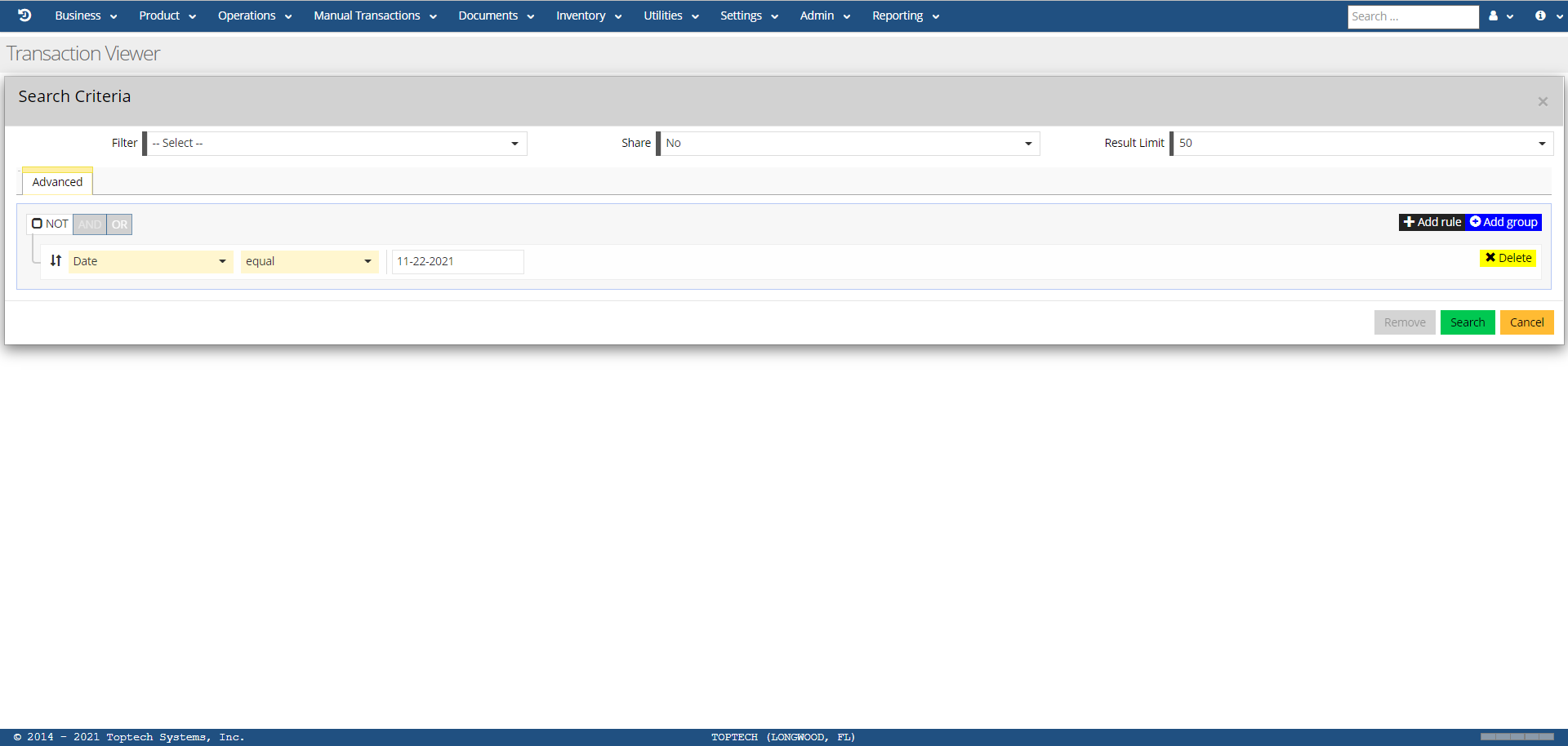
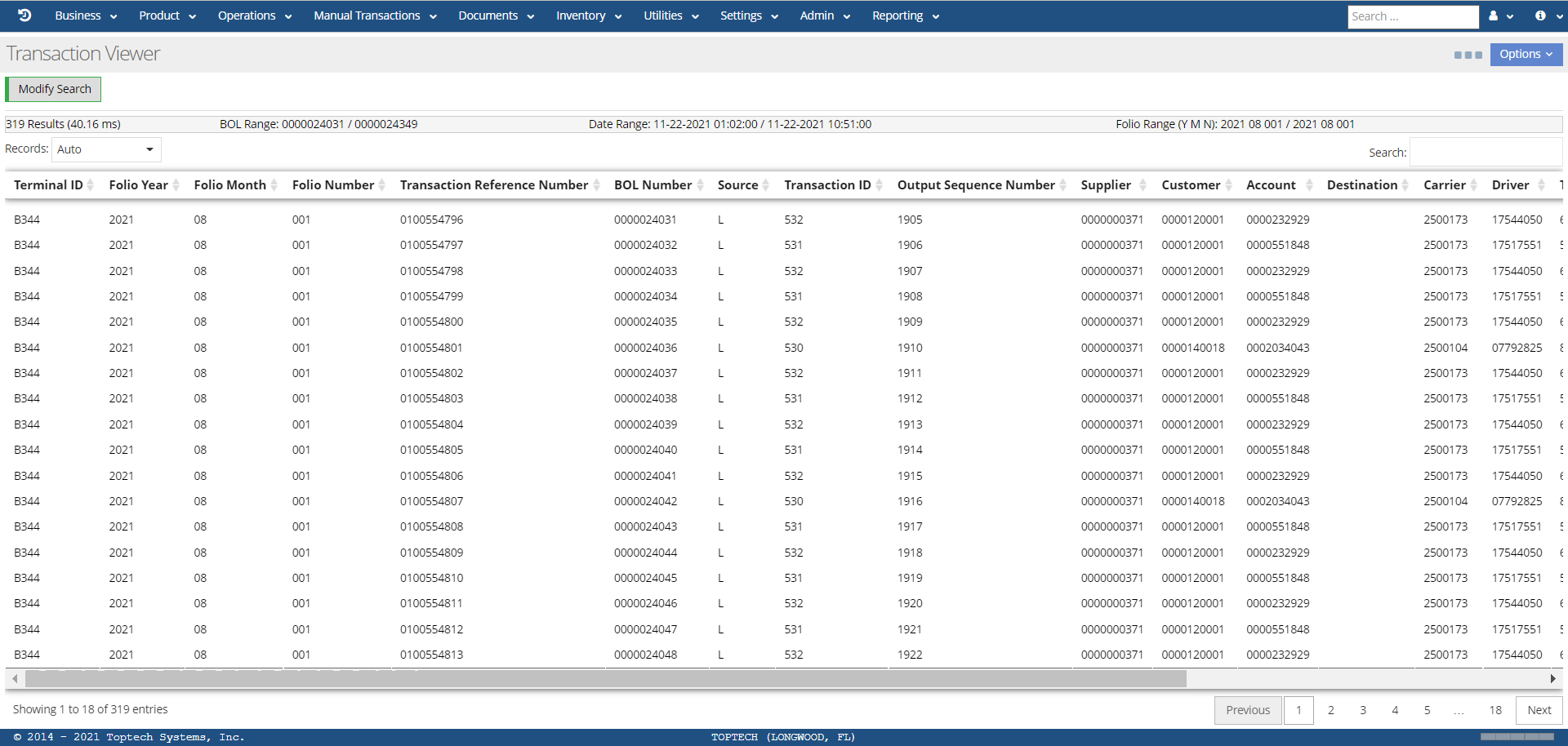
The Transaction Viewer screen will display the 'Search Criteria' modal screen when first navigating to the screen. After defining search criteria, transactions that fit the search parameters will be displayed. You can use the 'Columns' feature in the 'Options' menu to hide and unhide columns of data you want to view after generating your transaction search. Additionally, you can export the transaction viewer results by selecting 'Export Transactions (XLSX).'
You can modify a search at any time using the 'Modify Search Button.' See Search Criteria modal screen for an overview of how the transaction viewer's search feature works, and see Transaction Screen to understand how to read/interact with each transaction record that appears on the Transaction Viewer screen.
Search Criteria
The Search Criteria modal screen allows you to define specific parameters for locating transactions in the Transaction Viewer. The following sections will describe how to use the Advanced search filter features, as well as how to save filters to the Filter menu.
Search Criteria - Advanced
The Advanced search criteria allows you to define search rules for transactions. You can link together several search rules by using the '+Add rule' button, and then linking the rules using the 'AND,' 'OR,' and 'NOT' options.
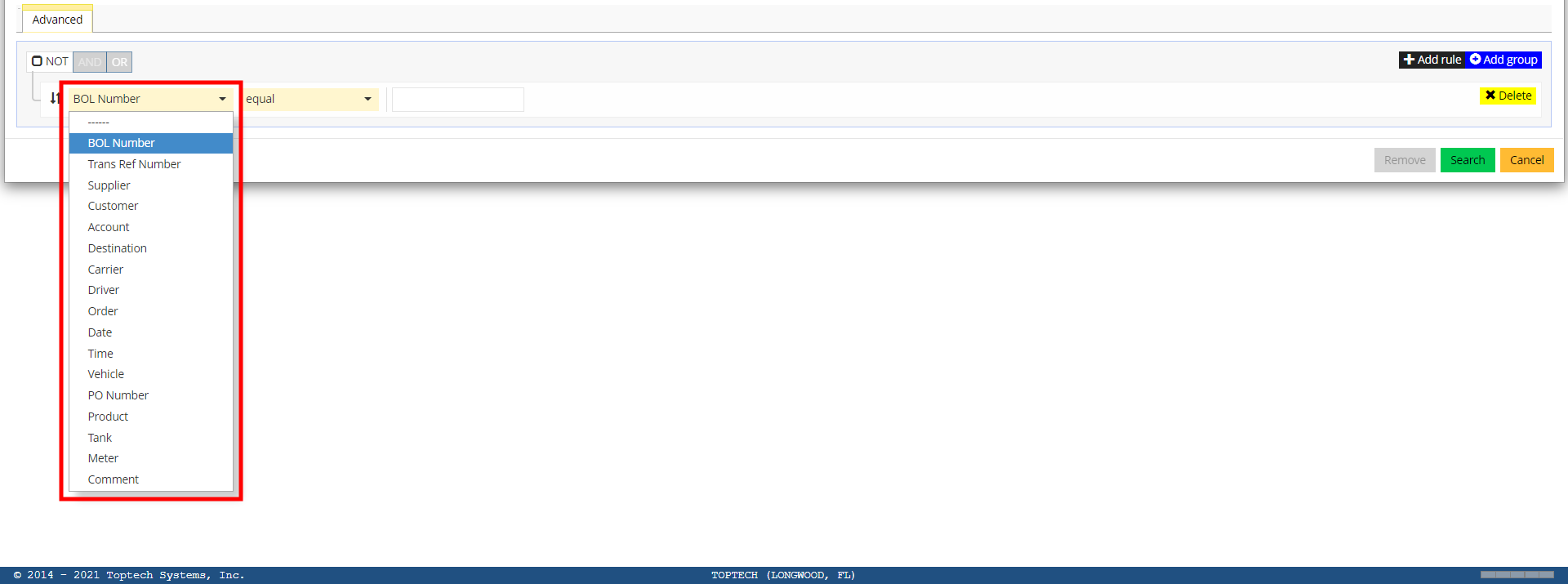
To begin defining a search pattern, select your first Search topic from the drop-down menu. The possible search topics can be viewed in the image below, and include options such as BOL Number, Supplier, and Product.
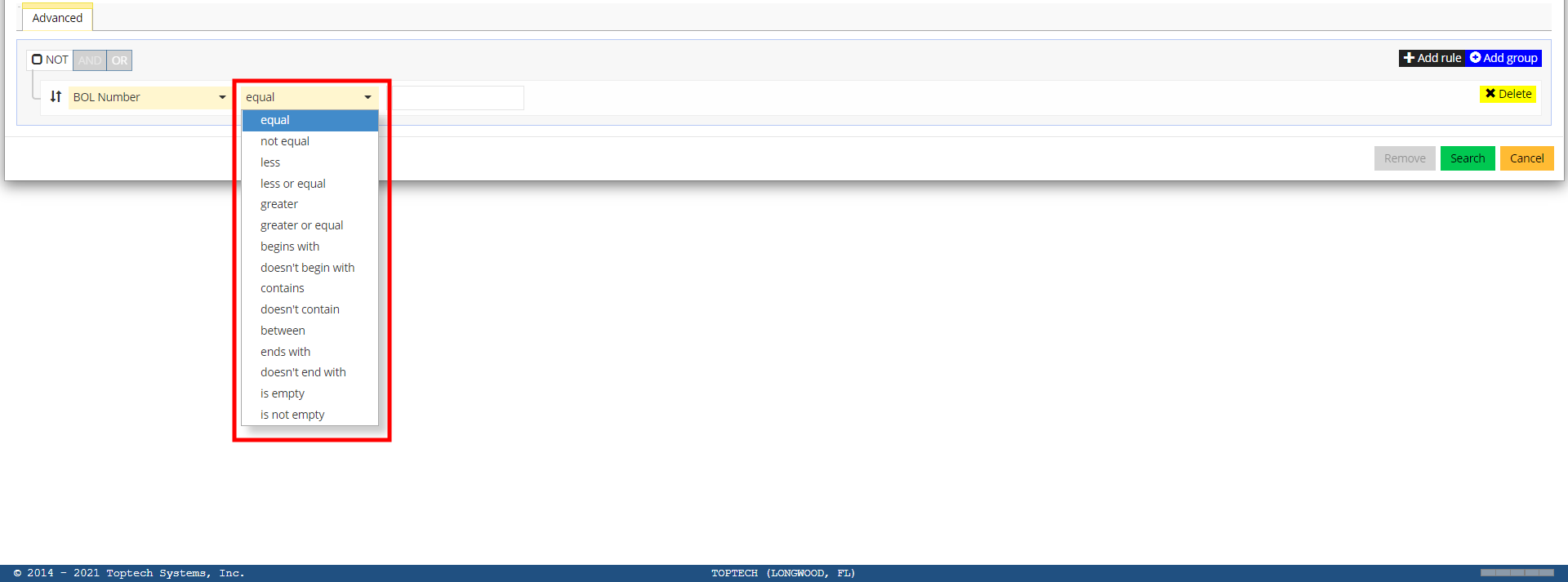
Next, select the formula for the search pattern. This will determine what kind of data TMS7 will search for based on your search pattern topic and the value you will define in your next step. For example, you could select 'Date' as your search topic and select 'greater or equal' as your search formula; after you specify the date in the search value field, the transaction viewer will pull all transactions that are greater than or equal to the date (or in other words, that occurred on or after that date). The search formula options can be viewed in the image below, and include options such as 'equal,' 'begins with,' and 'between.'
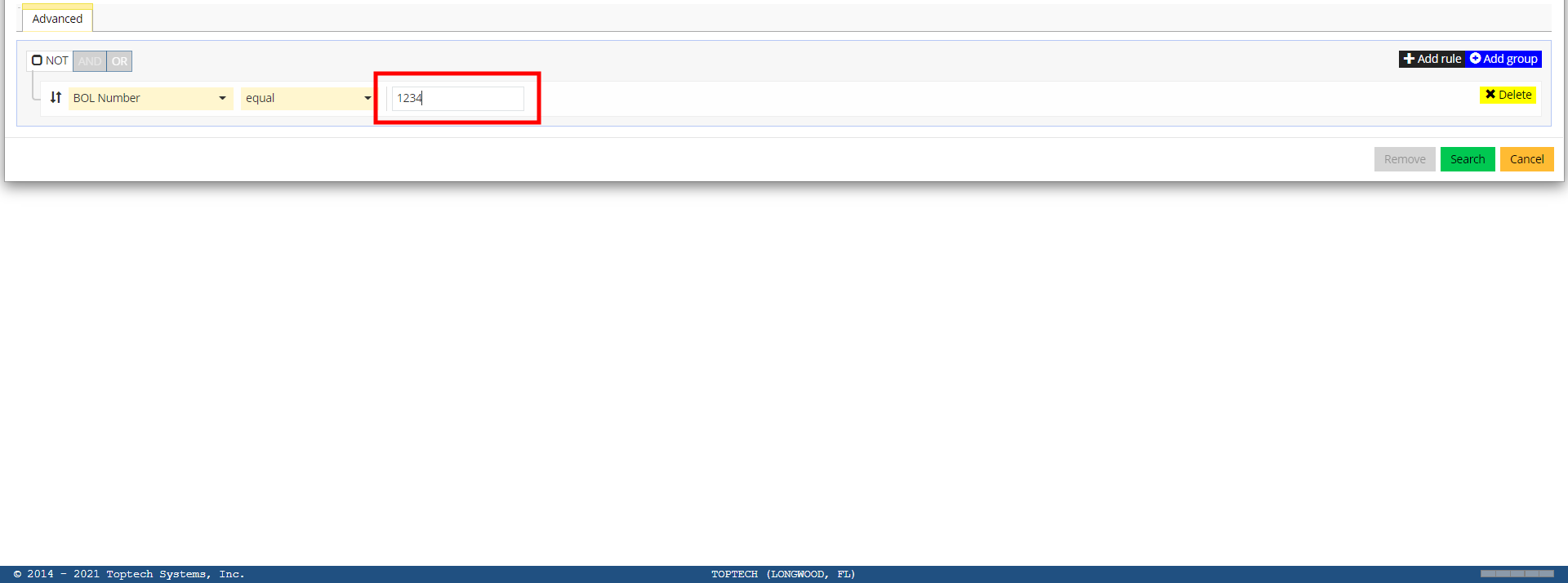
Next, enter a search value to complete your search pattern. Depending on what search topic you select, this field may be a free-form text box, or it may be a drop-down menu. For example, selecting BOL Number as your search topic will mean that your search value field will be a text box where you enter a number; selecting 'Time' as your search topic will mean that your search value field is a drop-down menu that lists times you can select.
After defining these three search pattern fields, you could select 'Search' and the transaction viewer would display all transactions that meet that basic search criteria. Also note that you could select the 'NOT' checkmark, and the results will instead be all transactions that do not meet the defined search parameters.
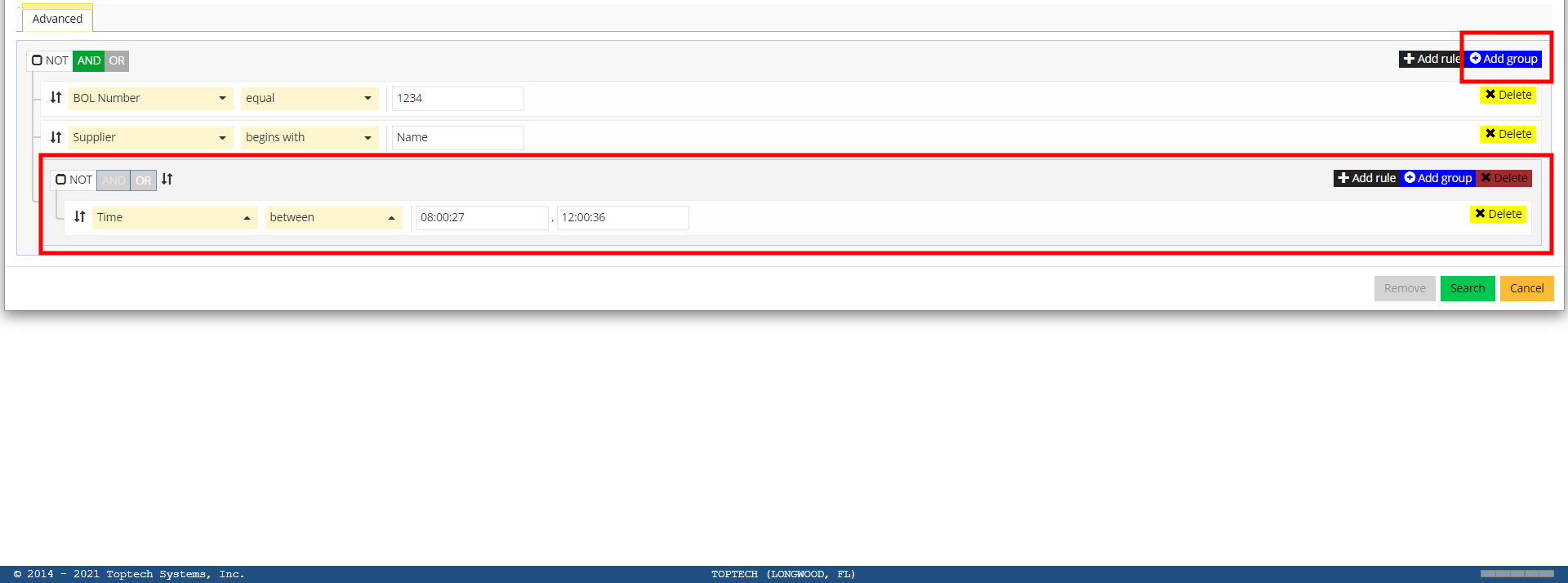
If you would like a search pattern with more complex/detailed search rules, you can use the '+Add rule' and '+Add group' features to create a more complex search pattern.
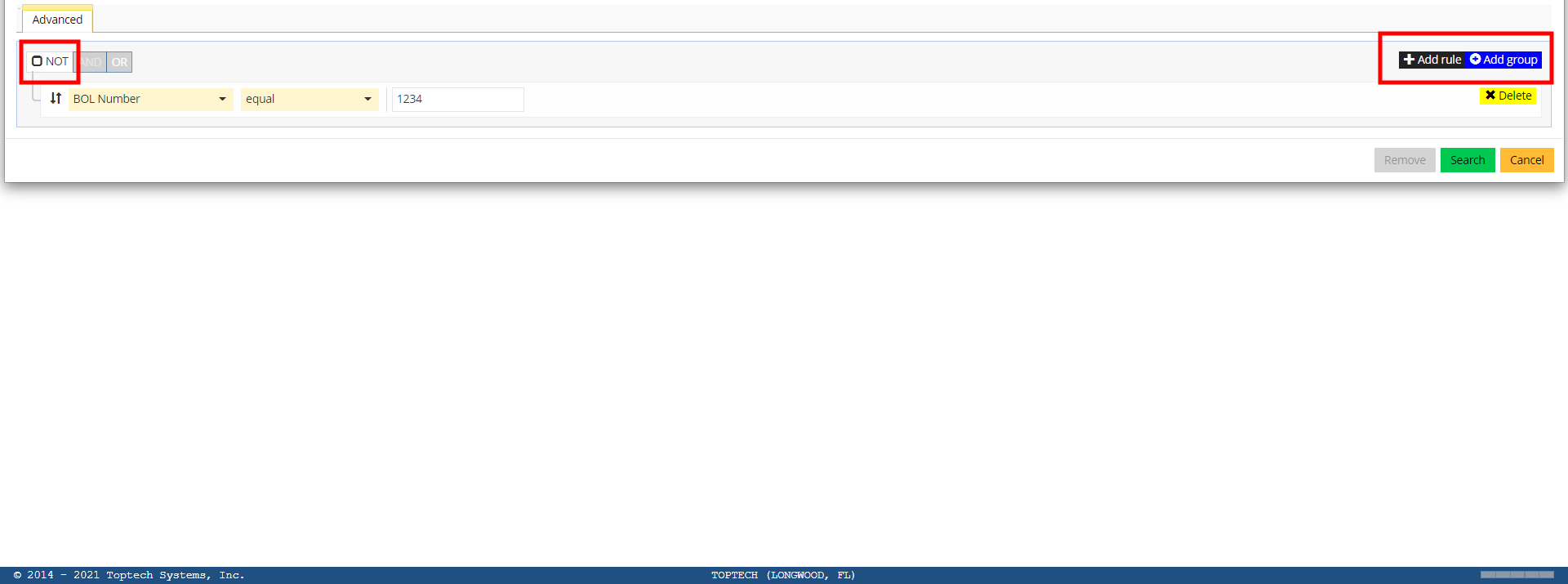
If you want to add a second search rule, select '+Add rule.' This will add a second search line identical to the first search line where you can select a search topic, formula, and value.
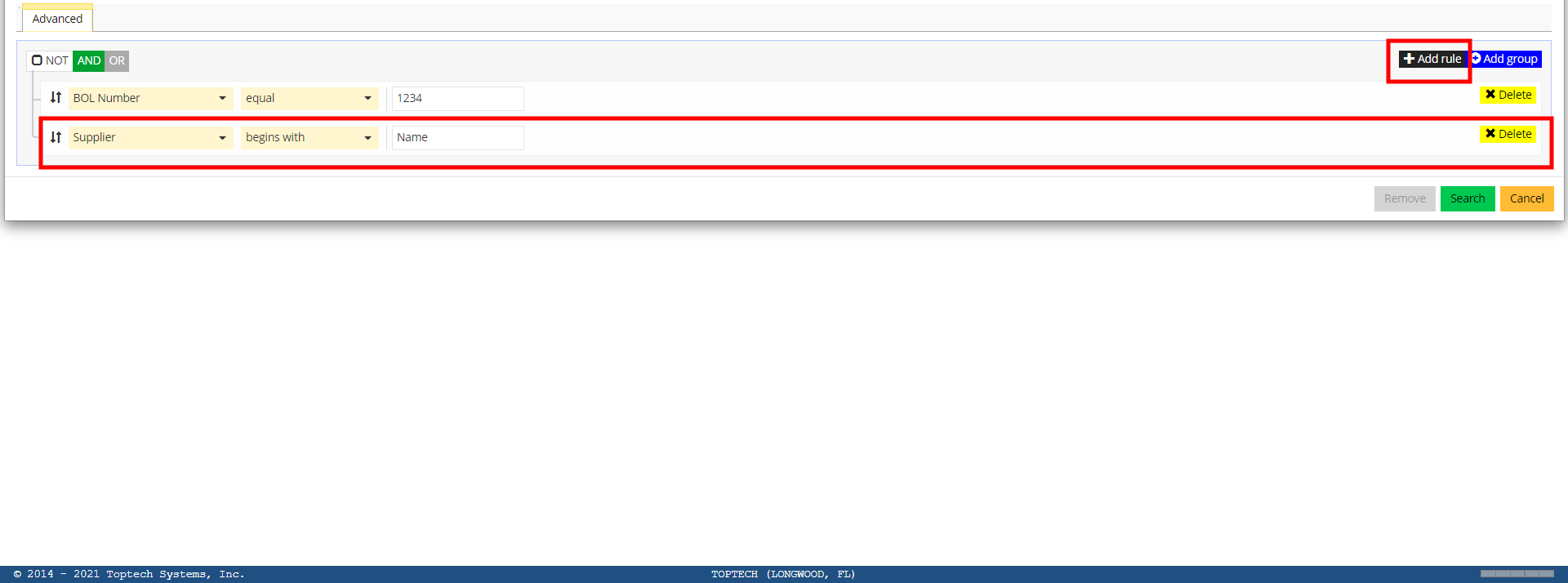
When you add a second rule, notice that you must either select 'AND' or 'OR' (the default is 'AND'). Selecting 'AND' means TMS7 will search for transactions that match the first search rule AND the second search rule (or as many rules are defined); only a transaction that satisfies all the search rules will appear in the Transaction Viewer. For example, in the image above only transactions with a BOL number equal to '1234' and with a Supplier that begins with 'Name' would be included in the Transaction Viewer report.
Selecting 'OR' means TMS7 will search for any transactions that match at least one of the search rules; transactions do not have to satisfy every defined rule to appear in the Transaction Viewer, only 1 of the defined rules. For example, in the image above transactions with a BOL number equal to '1234' or transactions with a Supplier that begins with 'Name' would be included in the Transaction Viewer report.
You can rearrange the order of rules by selecting the up and down arrow icon and dragging and dropping the rules into place.
Rules can be deleted by selecting the yellow 'xDelete' button.

You can also add additional search groups to create additional 'AND/OR' search pattern relationships. Your first set of rules are considered your first search group. Selecting '+Add group' will add a search group with features identical to the first search group, which will begin with 1 search rule.
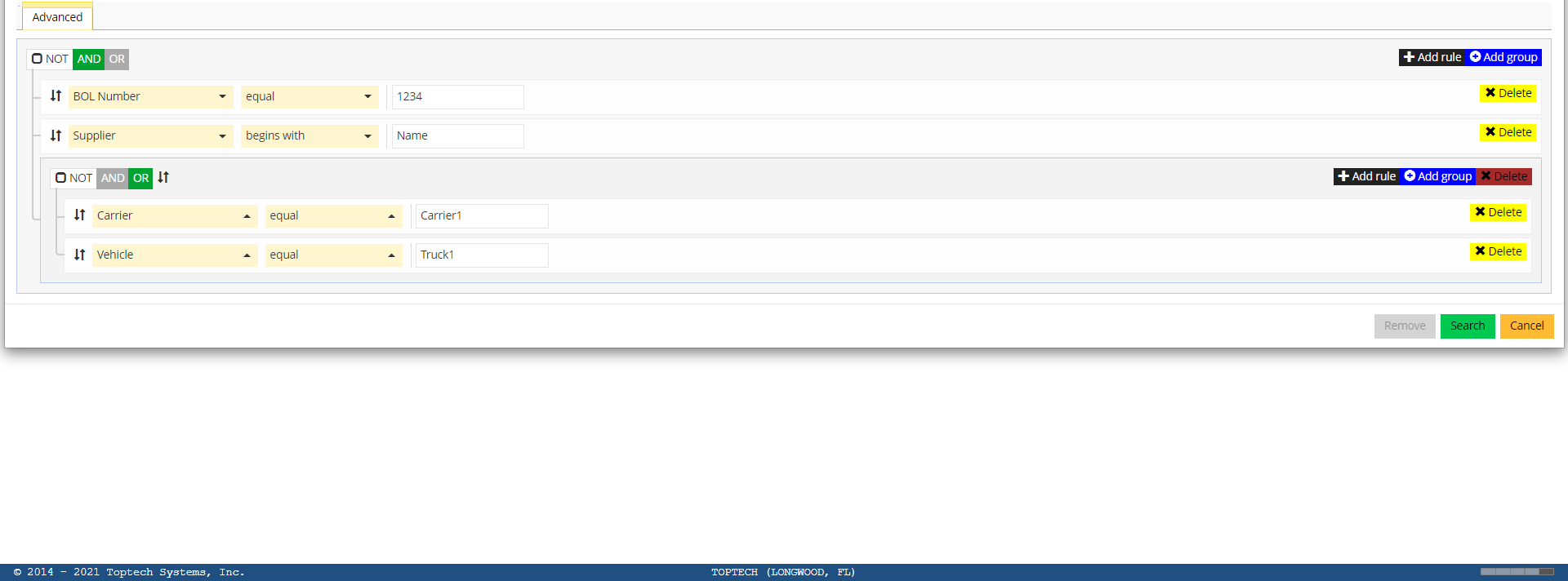
You can create several groups and sub-groups to create different levels of complexity in your search pattern. Groups must be used if you want to create search patterns that contain both AND and OR rules. In the example below, the search pattern uses a sub-group that searches for transactions that meet the criteria of [BOL Number] AND [Supplier] AND [Carrier OR Vehicle]; in other words, the transactions that appear based on that search pattern will be any transaction that has that BOL Number, Supplier, and either the Carrier or Vehicle.
Search Criteria - Using Filters
Filter menu
The filter feature allows you to add filter templates to make viewing transactions with specific search patterns easier in the future. After creating your search pattern, you can save the search pattern as a filter which will appear in the Filter drop-down menu.
To add a new filter, enter a name in the search field and then select '+Add'. After you fill out the search criteria fields with a search pattern as described in the previous section and select 'Search,' the filter will be saved with the parameters defined in each field. This filter will now appear on the Filter field drop-down menu.
Note: By default, filters will only be saved for that specific user; other users on TMS7 won't see the filter option in the Filter drop-down menu if they view this screen. If you want to save a filter that can be selected by any TMS7 user with the appropriate permissions, you will need to use the 'Share' field. Users must have Execute permissions enabled for this screen in order to use the Share Field.
Share Field
The Share field defines whether a newly defined filter will be available to all TMS7 users or only available to the specific user who created the filter. By default, the Share field is always marked 'No.' Additionally, only users with permission to use the Execute features for this screen in TMS7 will be able to save filters using the Share filter; these permissions are configured via the Groups screen.
If 'Yes' is selected and the filter is saved, the filter will appear in the Filter drop-down menu for all TMS7 users.
If 'No' is selected and the filter is saved, the filter will only appear in the Filter drop-down menu for the user who created the filter.

Result Limit
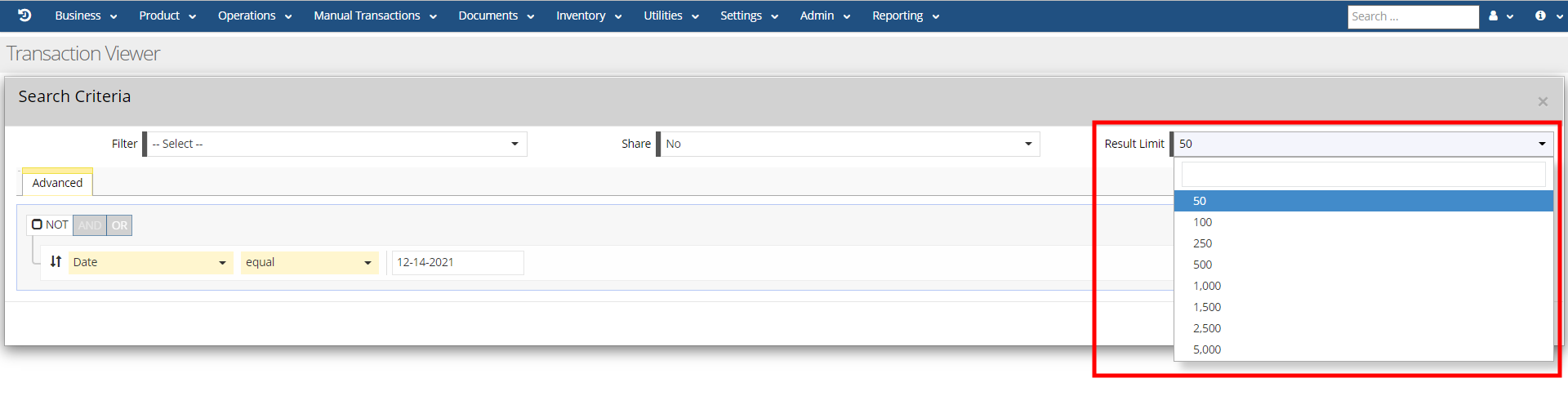
The Result Limit is a drop-down menu for selecting a limit to the amount of transactions that will appear in a search. The lowest limit is 50 results, and the highest limit is 5,000 results.
Transaction Screen
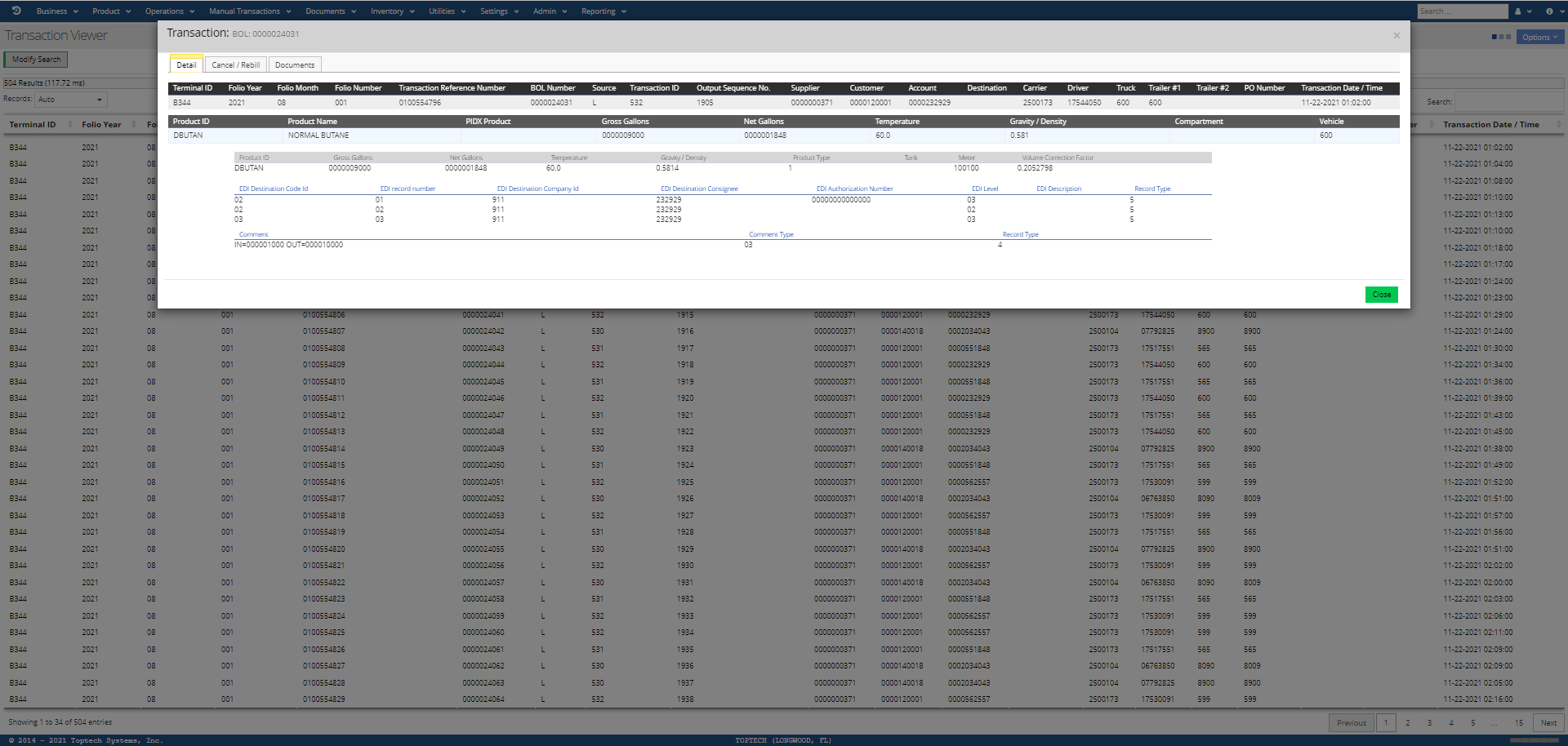
You can select any transaction record to open a modal screen for that transaction to view the transaction details, documents, and make modifications to transactions via the Cancel/Rebill feature (modifications are always classified as either a 'Cancel' or 'Cancel and Rebill'). The BOL number will be displayed at the top of the transaction, and the record will be divided into three tabs defined in the sections below: Detail, Cancel/Rebill, and Documents.
Detail
The Detail tab will display all of the details related to the transaction, including details related to the terminal, folio, supplier, customer, carrier, and product amounts and specifications. You can configure what data columns you want visible on both the Transaction Viewer Results screen and the Detail tab using the 'Columns...' option in the 'Options Menu.' The Columns modal screen features tabs for Headers, Products, Components, Comments, and EDI; you can drag and drop columns to make them hidden/visible and to rearrange the order they appear in on the screen.
Cancel/Rebill
Any type of change to a system transaction is a modification. Modifying information can be done as a Cancel or a Cancel/Rebill. The user has the option to just cancel or delete a transaction (Cancel Only), or to cancel it first and then rebill it as a new transaction after editing the details of the original transaction (Cancel/Rebill). After opening the Transaction Viewer, depending on if the transaction is eligible to be canceled or rebilled, the user will be presented with the available options.
Cancel Only Option
-
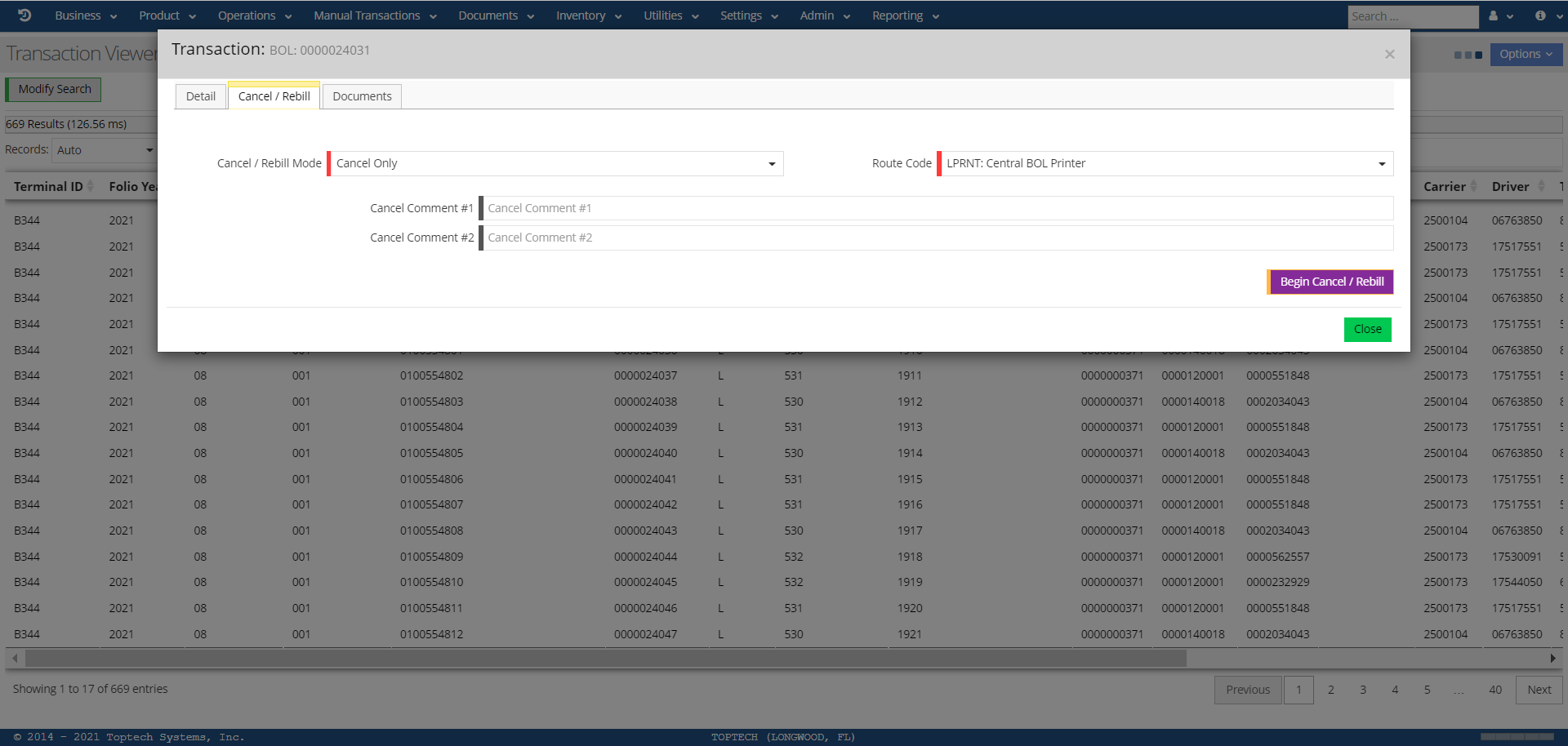
In the Cancel/Rebill tab of your desired transaction, select 'Cancel Only' from the Cancel / Rebill Mode field drop-down menu. You can enter comments as to why the cancel is occurring using the 'Cancel Comment #1-2' fields. Select the 'Begin Cancel/Rebill' button to proceed.
-
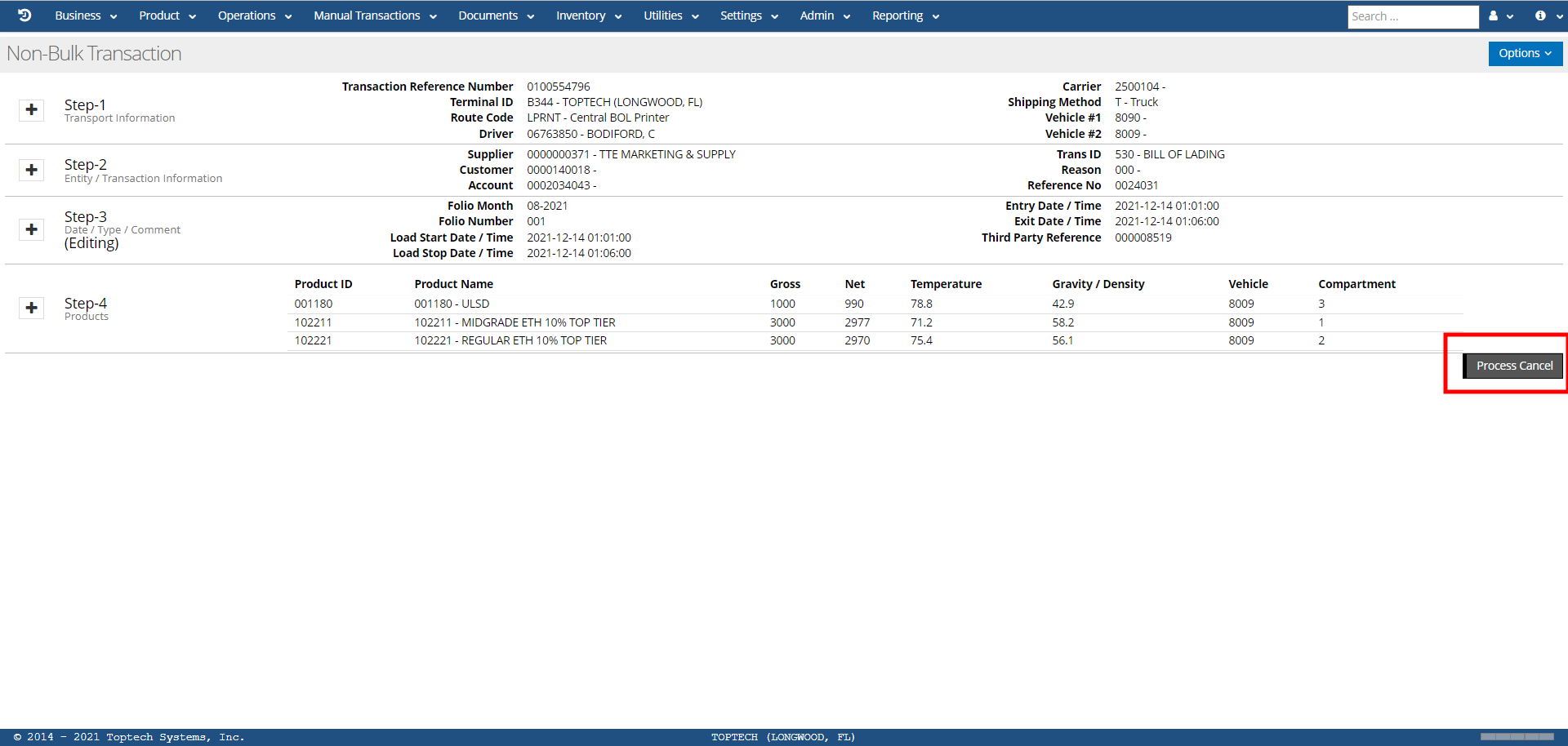
The transaction data will be displayed. Confirm that this is the transaction you want to cancel by reviewing the data (note that this screen typically reflects the 4-steps of data that are found on the Bulk and Non-Bulk Manual Transaction screens). To proceed, select the 'Process Cancel' button. Selecting this button will confirm the cancellation.
-
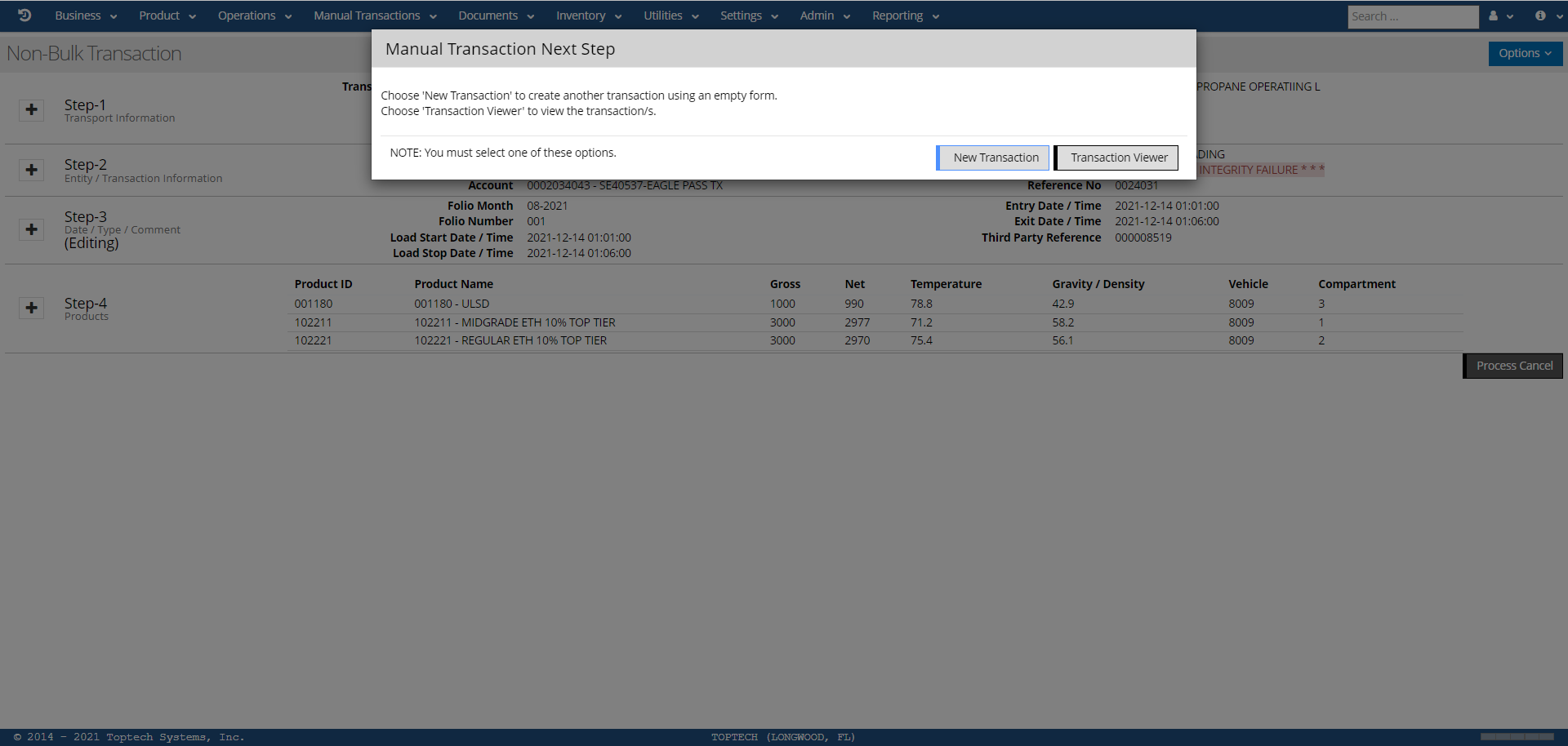
After selecting this, a Next Step screen appears indicating a mandatory selection. The user can select 'New Transaction' to start a new transaction with a blank form, or 'Transaction Viewer' to return to the transaction viewer.
-
The canceled transaction will be shown in the Transaction Viewer. An indicative feature of a canceled transaction is the presence of negative values in the Gross Volume and Net Volume fields in the Transaction Detail tab. On the Transaction Viewer screen, there is also a specific column you can enable for Cancel/Rebill; a 'C' will be shown if the transaction was successfully canceled, and an 'R' will be shown if it was rebilled.
Cancel/Rebill Option
-
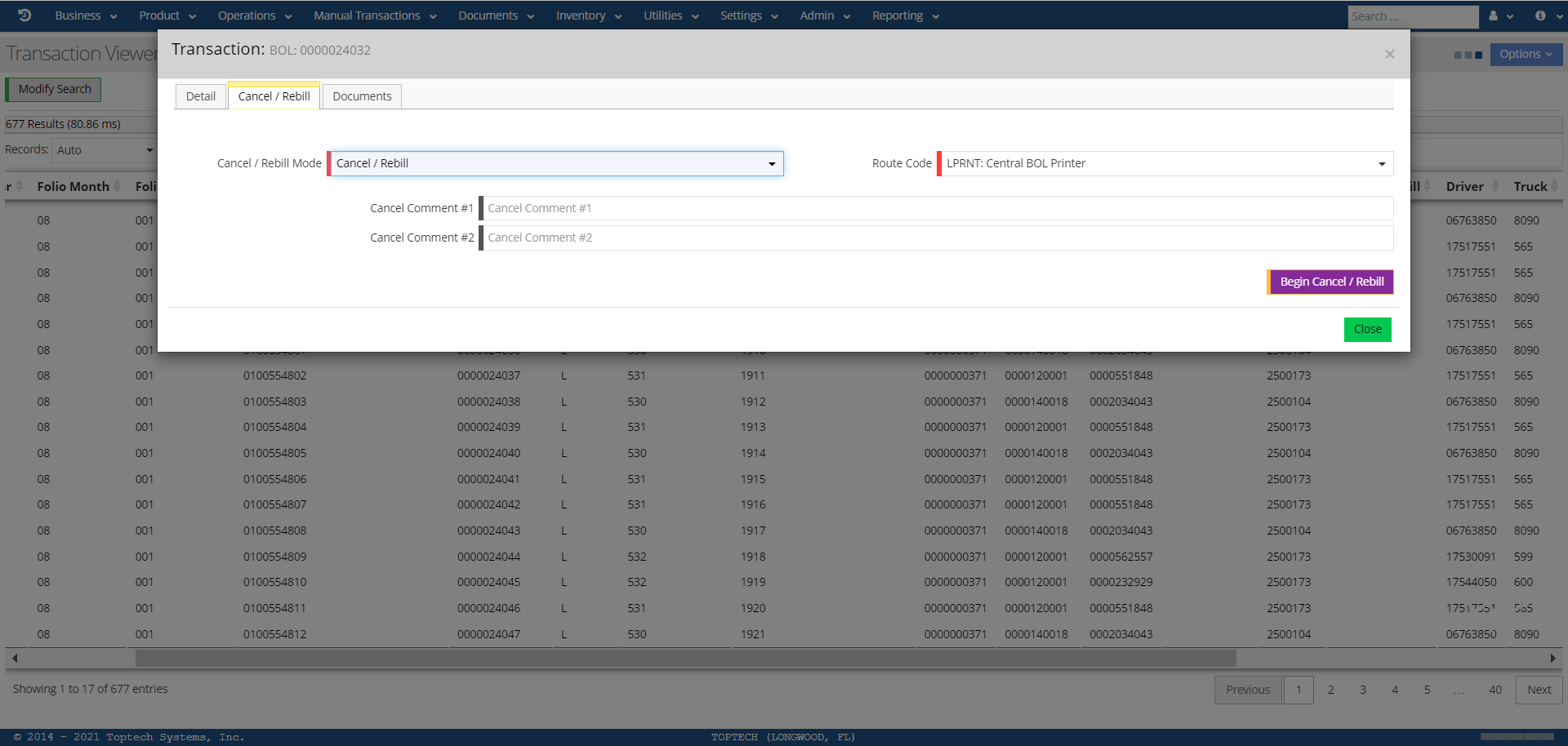
In the Cancel/Rebill tab of your desired transaction, select 'Cancel/Rebill' from the Cancel / Rebill Mode field drop-down menu. You can also select a route code and enter comments as to why the cancel is occurring using the 'Cancel Comment #1-2' fields. Select the 'Begin Cancel/Rebill' button to proceed.
-
You will be brought to the Non-Bulk Manual Transaction Cancel/Rebill screen. This screen is identical to the 4-step Non-Bulk Manual Transaction Workflow screen. See Non-Bulk Manual Transaction for descriptions of each step and the data fields in each step.
-
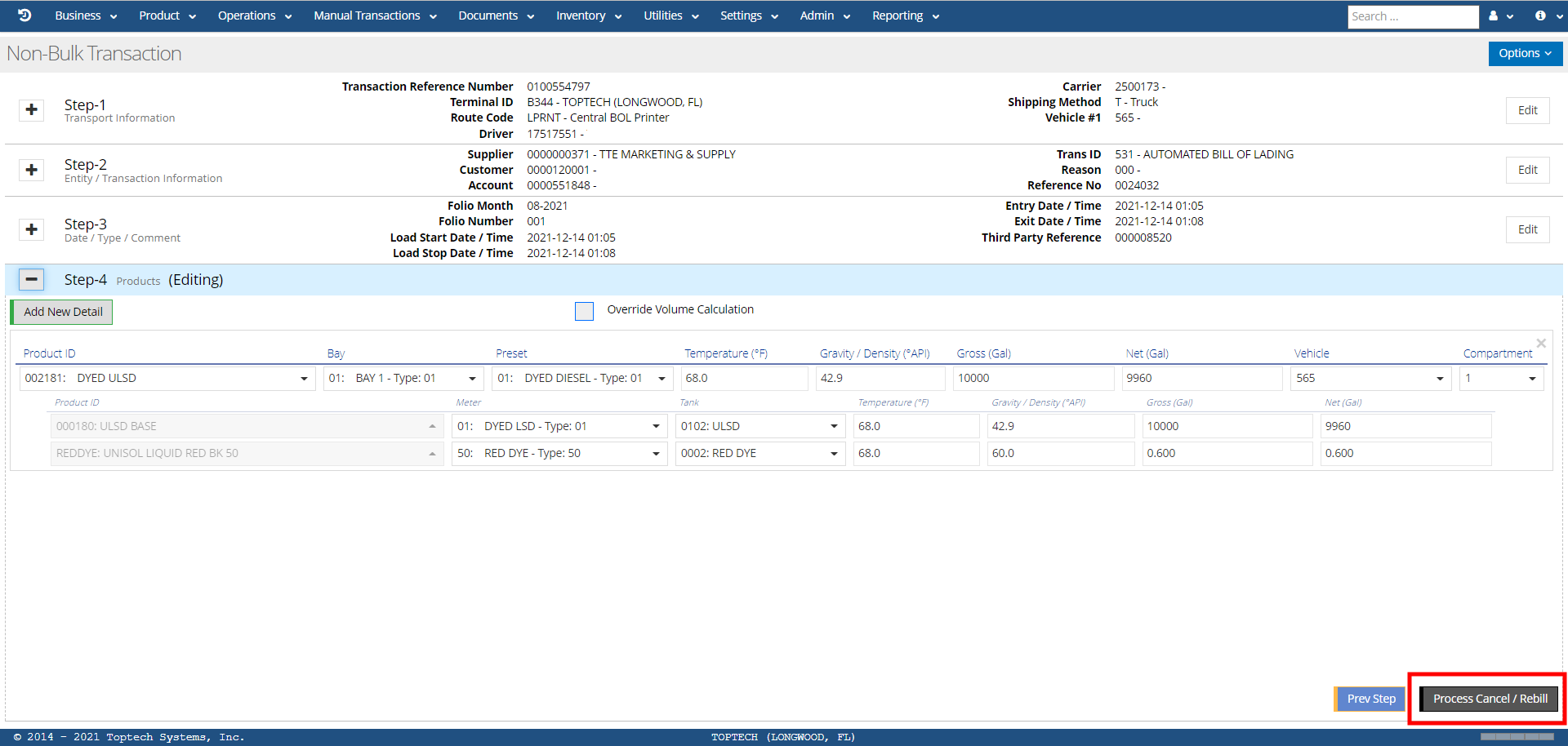
When each value of the transaction is verified and/or modified in each step, the 'Process Cancel/Rebill' button will be displayed at the bottom right side of the Step 4 (Products) Screen.
-
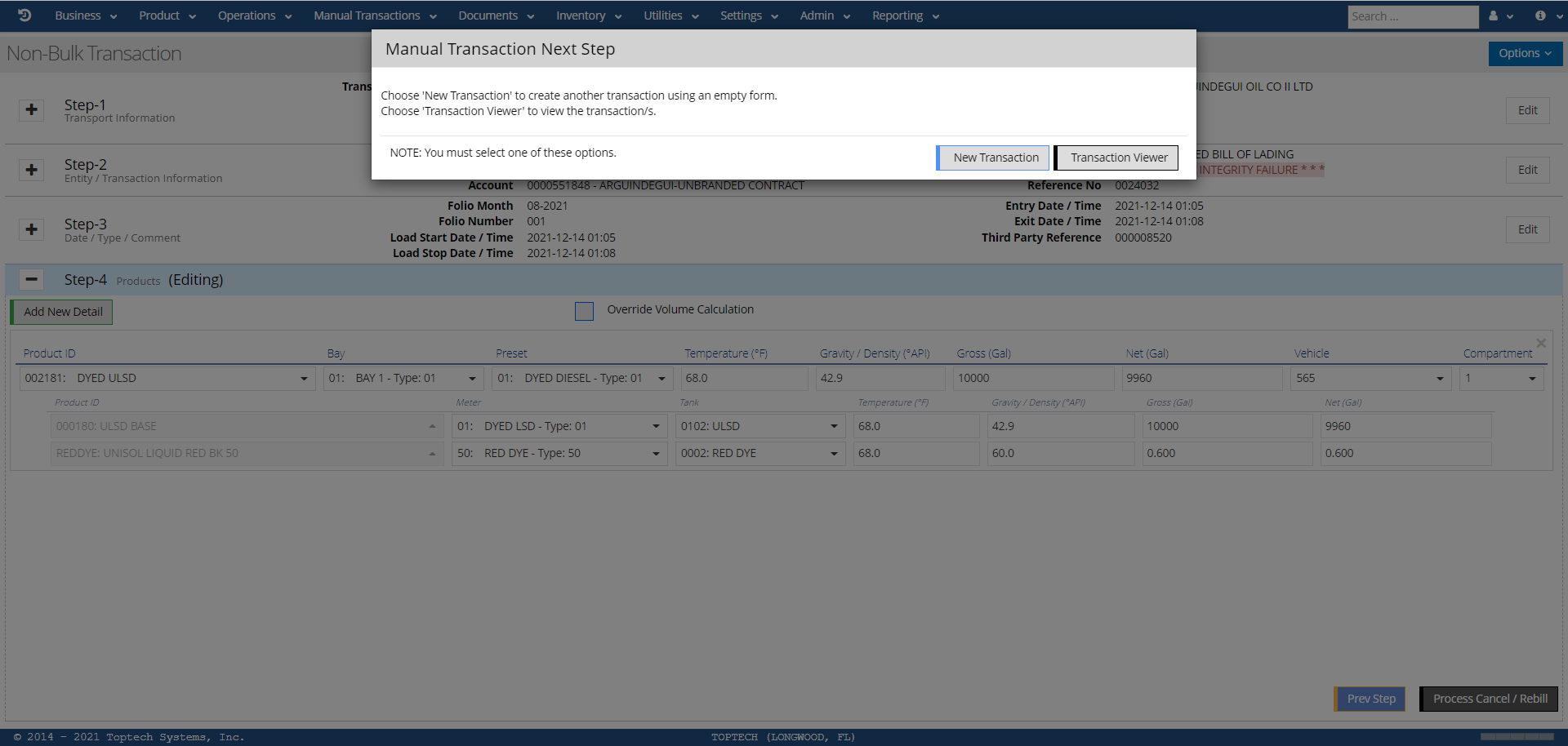
You will be prompted to start a New Transaction or to return to the Transaction Viewer; you must select one option to continue.
-
After you have confirmed your option choice, the transaction will appear in the Transaction Viewer. The transaction will have an 'R' in the Cancel/Rebill column indicating this was a rebilled transaction.
Documents
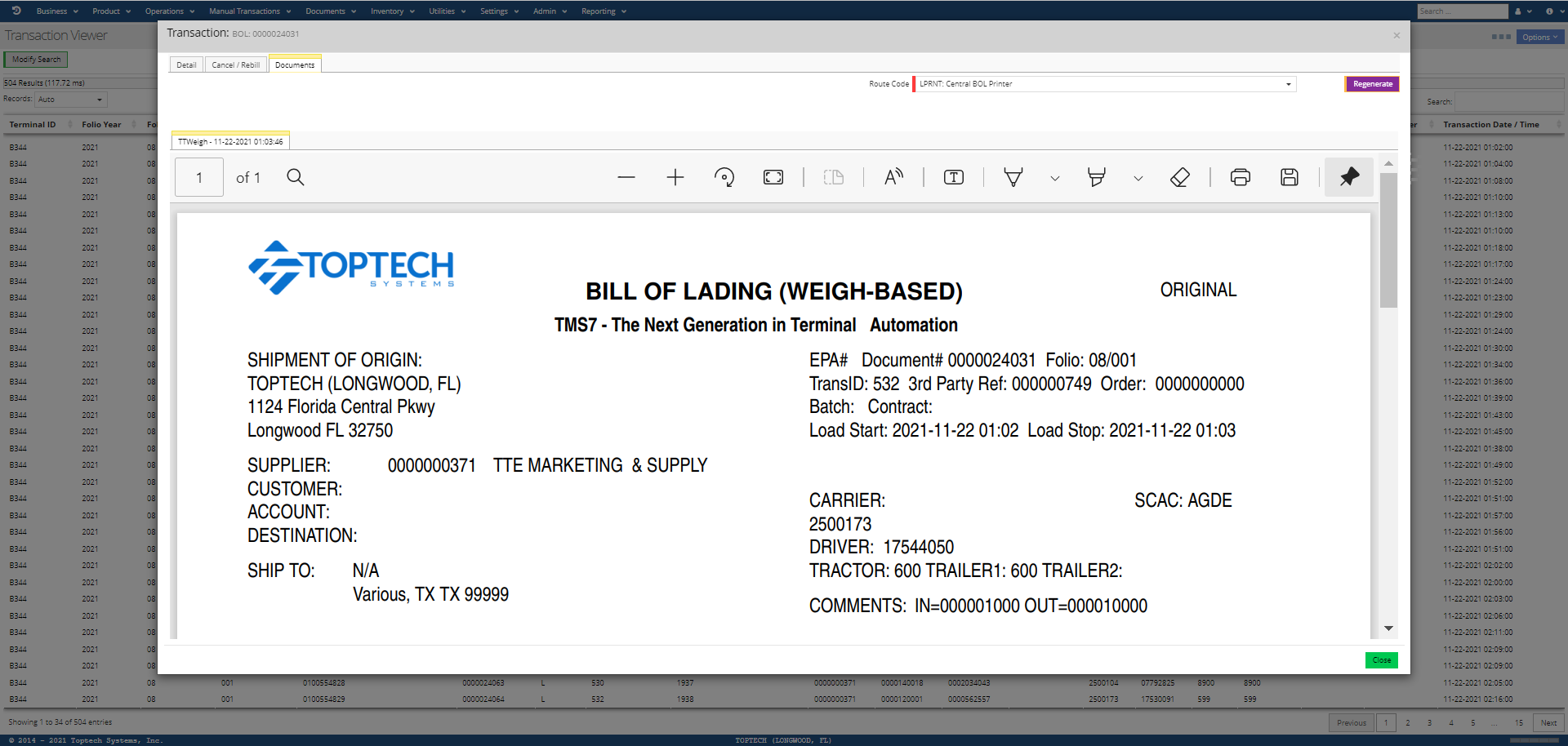
The documents tab will display the BOL associated with the transaction in a PDF viewer within the browser. The PDF viewer contains several tools, such as a highlight feature, save feature, print feature, and more. You can also select a Route Code and select 'Regenerate' in order to regenerate and reprint the BOL with any data that may have been updated if there was a data-entry error that was corrected after the transaction was completed.